How to Transfer Photos from Camera to Phone Wirelessly?

Time:2026-10-23 Author:Amelia
0%

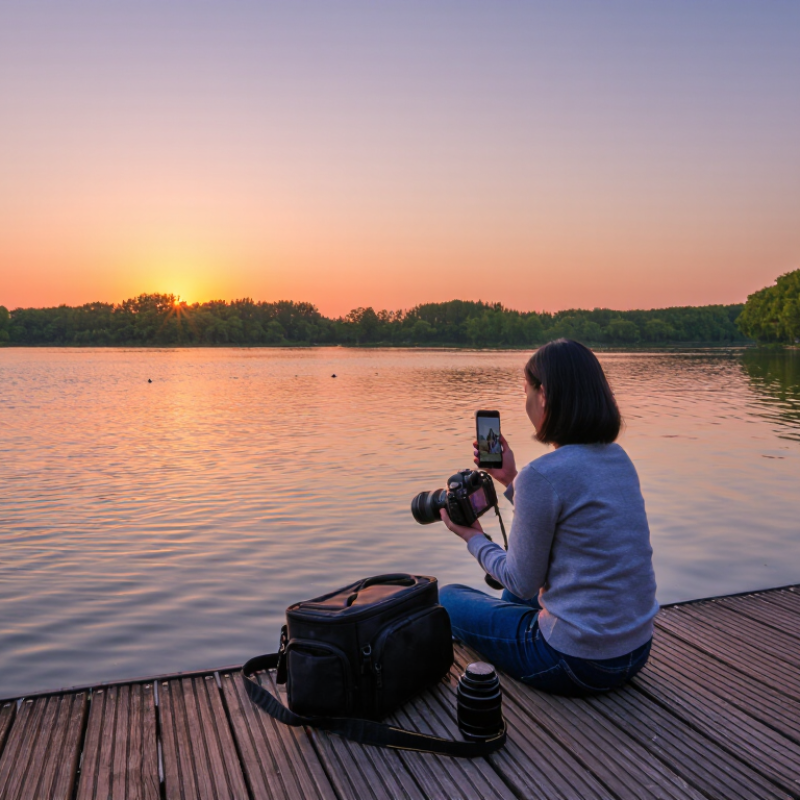
Learning how to transfer photos from camera to phone wirelessly can make a shooting day feel much easier. You can review images beside a quiet lake, send a portrait to a client, or post a sunset before the colors disappear. The process usually involves the camera’s Wi-Fi or Bluetooth connection, a companion mobile app, and a stable pairing routine.

Photographer and educator Chase Jarvis once said, “The best camera is the one that’s with you.” His observation also suits wireless sharing. A powerful camera matters less when images remain locked inside its memory card. In real use, however, wireless transfer is not always effortless. Menus may feel confusing. Some apps disconnect unexpectedly. Large RAW files can move slowly, especially in crowded locations.

This guide explains how to transfer photos from camera to phone wirelessly across common camera systems. It will cover camera settings, app installation, pairing steps, file selection, and practical troubleshooting. You may need to check your camera manual, because Wi-Fi features differ between models. Some cameras support full-resolution transfers, while others send smaller JPEG copies. Battery life also deserves attention. Wireless connections can drain a camera during a long outdoor session.

The safest approach is simple: connect through the manufacturer’s official app, confirm the device name, and transfer a test image first. That small check can prevent unnecessary frustration. I have found that convenience improves after one careful setup, although the first attempt may feel slower than expected. Expect a few imperfect moments. Reliable workflow grows from testing, not assumptions.
How to Transfer Photos from Camera to Phone Wirelessly?

Choose a Wireless Transfer Method for Your Camera and Phone

How to Transfer Photos from Camera to Phone Wirelessly?

Choose a Wireless Transfer Method for Your Camera and Phone

Your best method depends on the camera’s wireless features and your shooting situation. Many cameras create a private Wi-Fi network for direct transfers. Connect your phone to that network, open the camera’s companion application, and select the photos you need. This method usually handles several images quickly, but it can drain the camera battery. Bluetooth uses less power, although it often transfers slowly and may create smaller preview files.

A camera with built-in Wi-Fi works well during travel or outdoor sessions. A direct connection does not require public internet access. For large RAW files, however, wireless transfer may feel frustrating. I usually send JPEG copies while keeping the original files on the memory card. Check the file settings carefully. Some applications change image size without making the change obvious.

You can also use a wireless memory card or a camera connected to a trusted home network. These options may suit regular studio workflows, but compatibility can vary. Confirm the camera supports your phone’s operating system before a shoot. Keep both devices charged, and avoid transferring through an unknown network. My own attempts have not always been smooth. Connections sometimes fail after the phone locks, and restarting both devices fixes the problem more often than expected. Test the method with five ordinary photos first.

Prepare the Camera, Phone, and Wireless Connection

Before transferring photos, prepare all three parts: camera, phone, and connection. Charge both devices above 30 percent. A weak battery can interrupt a large RAW transfer. Check the camera’s firmware and install its official wireless utility from a trusted app store. GSMA’s State of Mobile Internet Connectivity 2024 reported 4.7 billion mobile internet users in 2023. Your phone is ready for connected imaging, but storage still matters.

On the camera, enable Wi-Fi and Bluetooth if both options are available. Bluetooth may handle discovery, while Wi-Fi carries the image files. Select phone pairing, then follow the displayed security code. Some cameras create a private hotspot. Others use the existing home network. Do not assume they work the same way. On the phone, allow local-network, photo, and Bluetooth permissions. Keep the devices within a few meters during setup. That small distance reduces avoidable dropouts.

Choose JPEG for quick sharing, or RAW for later editing. A 24-megapixel RAW file can exceed 20 megabytes, so transfer only selected images. I usually test one photo before selecting a full folder. It saves time. I still occasionally forget to disable automatic photo backup afterward. That can consume mobile data unexpectedly. The European Union Agency for Cybersecurity recommends strong, updated wireless security practices, so remove temporary pairings and disable the camera’s hotspot after transferring. Reflect on the process: convenience is useful, but a rushed connection can create duplicate files, missing images, or privacy mistakes.

Connect Both Devices Through Wi-Fi, Bluetooth, or a Camera App

How to Transfer Photos from Camera to Phone Wirelessly?

Wireless transfers work best when both devices use the same connection method. Built-in Wi-Fi usually provides the fastest movement of full-resolution JPEG files. Enable Wi-Fi on the camera, open its connection menu, and join the temporary network with your phone. A dedicated camera app can then browse thumbnails, select images, and save them locally. GSMA Intelligence reported that 4.7 billion people used mobile internet worldwide in 2023. That scale explains why phone-based photo workflows now feel practical, even outside professional studios.

Bluetooth is useful for pairing and sending small previews, but it can feel painfully slow with large photos. Keep both devices within a few meters, remove thick obstructions, and maintain at least 30% battery power. In my experience, Wi-Fi transfers become unstable when the camera screen turns off. I now disable automatic sleep during larger batches. That costs battery. It prevents interruptions. The 2024 DataReportal report counted 5.61 billion unique mobile phone users, showing how central phones have become to everyday media handling.

Camera apps often offer the clearest workflow, but permissions deserve attention. Allow access only when needed, and check whether images save as compressed copies. RAW files may transfer slowly or fail on older phones. I once assumed a complete transfer had finished, then found missing images later. A quick file-count check is worth the extra minute. Keep the original files on the memory card until every selected photo opens correctly on the phone.

Select and Transfer Photos to Your Phone

Select and Transfer Photos to Your Phone

Wireless transfer works best when you select photos before pressing Send. Turn on the camera’s wireless connection, then open its companion app on your phone. Pair both devices through the displayed code or QR prompt. Keep them close, ideally within a few meters. Distance weakens the connection.

Open the camera gallery and switch to thumbnail view. Tap only the images you need. A small selection saves time and phone storage.

“ CIPA’s 2024 shipment statistics recorded more than eight million digital cameras worldwide, showing that dedicated cameras still matter. Many users now review those images on phones.

Choose original files for editing, or smaller copies for messaging. Check the file size first. RAW files can be very large.

Before transferring everything, send one test photo. Inspect its sharpness, date, orientation, and location data. Some wireless apps change filenames or remove metadata. I still make this mistake when transferring too quickly.

Keep the phone unlocked, disable aggressive battery saving, and avoid crowded public networks.

GSMA Intelligence estimated 4.6 billion mobile internet users in 2023, but connectivity quality differs widely.

If the transfer stops, reconnect both devices and send the remaining photos in smaller groups.

Do not delete the camera originals until the phone gallery opens them correctly.

Check, Organize, and Secure the Transferred Photos

After transferring photos wirelessly, check them before deleting anything from the camera. Compare the camera’s file count with the phone’s gallery. Open several images at full resolution, including the first, middle, and last files. Look for missing frames, corrupted previews, or incomplete transfers. Keep the memory card untouched for a day. I still miss a blurry frame sometimes.

Organize images immediately. Create folders by year, month, and event, then remove duplicates and obvious mistakes. Preserve original files, including RAW images and metadata. Add short, searchable names when necessary. A simple structure saves time during editing. It also exposes problems early. Cloud storage can help, but automatic syncing may copy unwanted images everywhere.

Security deserves equal attention. Use a private network, enable device locks, and review transfer permissions afterward. Avoid transferring sensitive photos through public networks. Verizon’s 2024 Data Breach Investigations Report found that human involvement appeared in 68% of breaches, so small mistakes matter. IBM’s 2024 Cost of a Data Breach Report placed the global average breach cost at 4.88 million dollars. That figure is not photo-specific, but it shows the wider risk. Keep three copies, on two storage types, with one stored separately, following guidance from the Cybersecurity and Infrastructure Security Agency. Wireless transfer is convenient, not magic. Take one minute to verify the backup.

FAQS

What is the fastest way to transfer photos wirelessly?

Built-in Wi-Fi usually transfers full-resolution JPEG files fastest. Join the camera’s temporary network with your phone. Use the camera app to select images.

Can Bluetooth transfer camera photos?

Yes, but Bluetooth works better for small previews. Large photos may transfer painfully slowly. Keep both devices nearby. Expect delays.

How can I prevent Wi-Fi transfers from stopping?

Disable automatic sleep on the camera during large batches. Keep the camera screen active. This uses more battery, but interruptions become less likely.

What should I check before deleting photos from the camera?

Compare the camera’s file count with the phone’s gallery. Open the first, middle, and last images at full resolution. Check for missing or corrupted files.

Should RAW files be transferred wirelessly?

RAW files can transfer slowly or fail on older phones. Keep the original files on the memory card. Confirm each selected image opens correctly.

How should transferred photos be organized?

Create folders by year, month, and event. Remove duplicates and obvious mistakes. Keep original files and metadata. Simple folders help later.

How can I protect photos during wireless transfers?

Use a private network and device locks. Review app permissions after transferring. Avoid public networks for sensitive photos. Small mistakes still matter.

What backup method is practical for transferred photos?

Keep three copies on two storage types, with one copy stored separately. Do not erase the memory card immediately. Wait at least a day.

What common mistake should I watch for?

Do not trust a completed transfer message completely. I once found missing images later. A quick file-count check takes one minute.

Conclusion

Transferring photos without cables can be simple when you choose the right wireless method for your camera and phone. Start by checking whether both devices support Wi-Fi, Bluetooth, or a dedicated camera connection app. Charge the devices, enable the required wireless settings, and keep them close together to create a stable connection. If needed, follow the camera’s pairing instructions and allow the phone to access the camera’s stored images.

Once connected, browse the photos on the camera and select the files you want to move. Choose an appropriate image size and begin the transfer, keeping both devices active until the process is complete. Afterward, open your phone’s gallery to confirm that the photos were transferred successfully. Organize them into albums, remove unwanted duplicates, and back up important images to a secure location. These steps provide a practical guide on how to transfer photos from camera to phone wirelessly while keeping your memories accessible and protected.

Amelia

Amelia

Amelia is a seasoned marketing professional with a wealth of expertise in our company’s core offerings. With an unwavering passion for driving growth and innovation, she plays a pivotal role in shaping our marketing strategies and enhancing brand visibility. A key aspect of her responsibilities......